Built-in device protection
Supported Galaxy devices use Knox components from hardware through Android. Owners benefit even when they never open a Knox-branded app.
See the protection layers →Samsung Knox is not one app or one lock screen. It is a security framework built into supported Galaxy devices, with separate tools for personal privacy, enterprise management, credential protection, and device financing controls.

For most owners, Knox should stay enabled. Use Secure Folder when you need an isolated copy of apps and files. Remove only the feature or management profile you understand. If the phone is controlled by Knox Manage or Knox Guard, the authorized organization or provider must release it.
Knox is a collection of protections and business services, not a single switch. The built-in security foundation helps verify the device as it starts, encrypt data, protect credentials, isolate selected apps, and let authorized administrators enforce policies on managed devices.
Supported Galaxy devices use Knox components from hardware through Android. Owners benefit even when they never open a Knox-branded app.
See the protection layers →Secure Folder creates a separate protected profile where you can install separate app copies and store private files.
Set it up safely →Knox Manage is an enterprise mobility management service. Policies come from an authorized admin account, not from a universal owner password.
Understand managed-device removal →Knox Guard can restrict a device for fraud prevention or payment recovery. Legitimate unlocking is handled through the provider’s console and verification process.
Use the approved recovery path →Samsung Knox is the security and management foundation built into supported Samsung Galaxy devices. It protects data through multiple layers and provides services such as Secure Folder, Knox Vault, Knox Platform for Enterprise, Knox Manage, and Knox Guard. Availability varies by model and deployment.
Knox security is strongest when the layers reinforce one another. A protected app cannot compensate for an outdated operating system, and a strong chip cannot prevent a user from sharing a PIN.
Boot integrity, device-unique keys, trusted execution components, and supported Knox Vault hardware protect selected secrets.
File-based encryption, process isolation, permissions, update integrity, and policy enforcement protect data in daily use.
Secure Folder, enterprise work profiles, credential services, and approved Knox APIs create controlled spaces and workflows.
Knox Manage and compatible enterprise tools can apply controls, certificates, restrictions, and remote commands to enrolled devices.
Select a layer to see what it can and cannot do.
The Knox security foundation belongs to supported Samsung devices. Some Knox cloud services can manage broader device fleets, but that does not turn Windows, macOS, or iPhone hardware into Knox-secured devices.
| Platform | Built-in Knox device security | Secure Folder | Knox management relationship | Practical note |
|---|---|---|---|---|
| Samsung Android phones | Supported models | Often available, model and region dependent | Full Samsung-focused capabilities on eligible devices | Check model support and current One UI settings. |
| Samsung Android tablets | Supported models | Availability varies | Can be enrolled in supported enterprise deployments | Wi-Fi-only and budget models may differ. |
| Other Android brands | No Samsung Knox foundation | No Samsung Secure Folder | Some cross-platform management may be possible | Use the manufacturer’s private space or Android work-profile options. |
| iPhone and iPad | No | No | Knox Manage may support selected cross-platform management scenarios | Apple’s security model and app restrictions are separate. |
| Windows and macOS | No | No | Admins can use browser-based consoles; service coverage varies | Do not describe a PC as “protected by Knox” merely because it opens the admin portal. |
This quick checker gives a cautious answer. Final availability depends on the exact model, region, carrier, and software version.
Start by naming the problem. Most people do not need to “disable Knox.” They need to hide Secure Folder, lock a specific app, remove a work profile, or recover access through an authorized account.
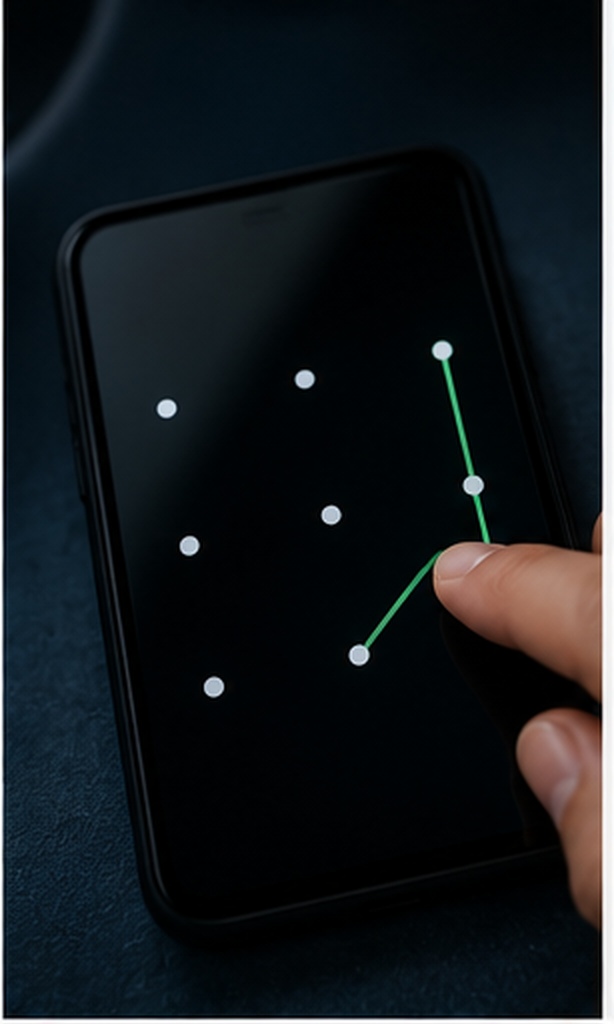
Secure Folder is the strongest built-in choice when you want a separate copy of an app and its data. An app installed inside the container does not simply share the same local data as the copy outside it.
Use Settings search because menu names vary across One UI versions. Confirm you are signing into your own Samsung account.
Use a long PIN or password that is different from obvious dates. Biometrics should be convenience, not your only plan.
Install a separate app copy inside the folder or move selected files. Verify the original copy outside is removed when privacy requires it.
Hide the Secure Folder shortcut if desired, restart the phone, and verify that the container relocks correctly.
Separate banking profiles, private photos, work documents, secondary messaging accounts, and data that should not remain in the main profile.
It is Samsung-only, availability varies, and data stored only inside can be lost if recovery was not configured and credentials are forgotten.
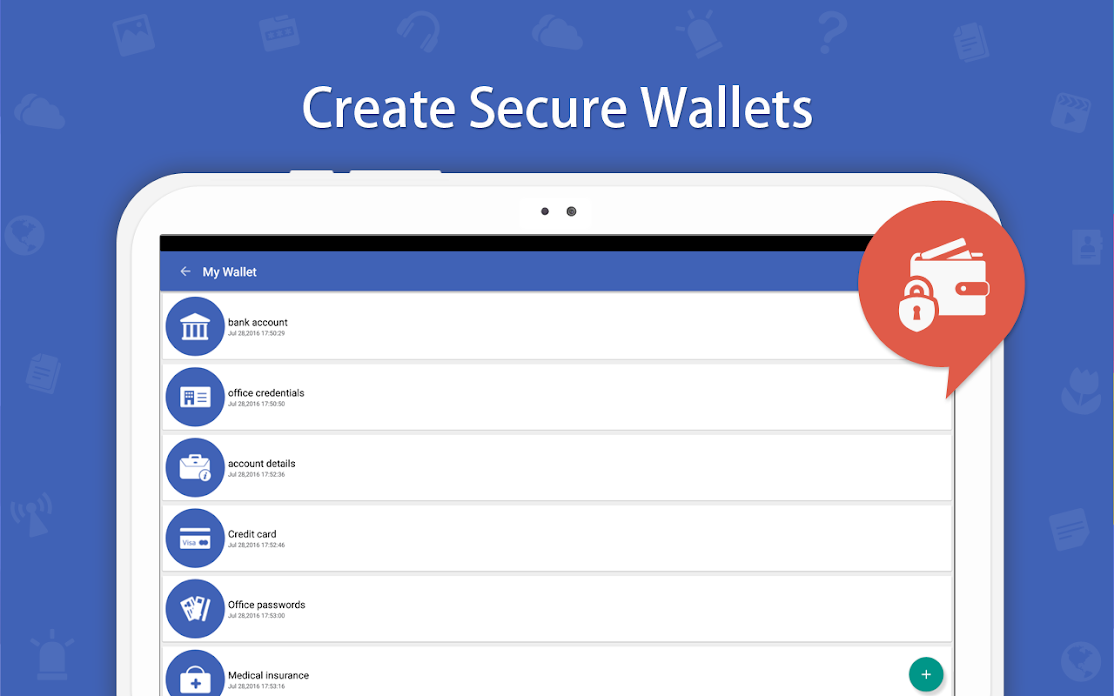
Folder Lock Android adds a protected vault for photos, videos, documents, notes, wallet details, and selected apps. It can complement Knox by protecting content outside Secure Folder or by offering a different organization workflow.
People who want one privacy app for media, documents, notes, app locking, and selected encrypted backup features.
It is not a replacement for Knox hardware security, enterprise management, the phone screen lock, or a reliable backup. Android permissions and background restrictions can affect app-lock behavior.
Parental controls are better than a secret app-lock PIN when the real goal is age-appropriate access, time limits, purchase approval, or content restrictions. Use the child’s supervised account and make the parent account the policy owner.
Screen-time rules, app installation approval, content filtering, and predictable family-device boundaries.
Parental controls are not a private encrypted container and should not be used to conceal sensitive adult files on a shared device.
Choose the closest description.
There is no single “Samsung Knox security remove” procedure because Knox can refer to the built-in platform, Secure Folder, a work profile, Knox Manage, Knox Mobile Enrollment, or Knox Guard. Identify the visible signs before changing anything.
| What you see | Likely feature | Who can remove it | Safe action |
|---|---|---|---|
| A separate locked folder icon | Secure Folder | The verified device owner | Move out required files, then use Secure Folder’s uninstall or hide option. |
| Work badge on apps or “managed by your organization” | Android work profile or Knox Manage | Authorized admin, sometimes the owner if unenrollment is permitted | Ask IT to unenroll; do not factory reset until enrollment status is cleared. |
| Device cannot be used without authorization or payment status | Knox Guard | Enrolling provider, reseller, lender, or authorized console admin | Resolve the account or ownership issue and request an official unlock command or PIN. |
| Knox appears in About phone or security information | Built-in Knox platform | Not a removable consumer app | Leave it in place and keep the device updated. |
A policy is usually being enforced by an administrator, a work profile, a device-owner app, or a financing service. Check Settings for work-profile or device-admin indicators and read the organization name shown on the device. If the phone was sold to you as unmanaged, contact the seller with proof of purchase and ask them to release it from their console.
A device user should not attempt to impersonate the tenant administrator. The legitimate routes are an admin-issued unenrollment command, an offline unenrollment code provided by the organization for a disconnected device, or a documented ownership transfer. If this is a former employer’s phone, ask the employer to remove the device from both management and enrollment systems before resetting it.
Knox Guard unlocking is performed through the authorized console. Depending on the deployment, the device can receive a remote unlock or a one-time PIN generated after the console verifies the device passkey and account status. “Knox Guard console unlock free” is not a consumer download category.
Use Samsung account reset only when the reset option was enabled before the credential was forgotten. If it was not enabled, the supported path may be to remove Secure Folder and set it up again. That can erase data stored only in the container, so avoid guessing repeatedly and verify backup options first.
Security depends on both the authentication method and what it protects. A fingerprint prompt in front of an app is not the same as a separate encrypted profile backed by the device security architecture.
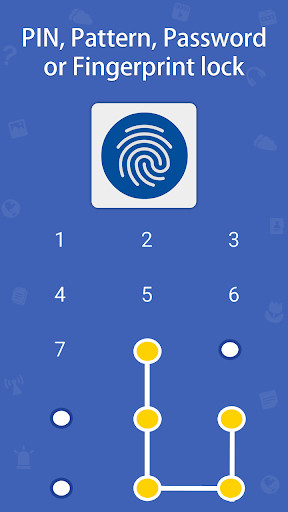
Fast and private in public. Good for frequent use, but it always depends on a fallback credential and may be disabled after restart.
Convenience: highEasy to enter and replace. Use at least six unpredictable digits and protect against shoulder-surfing.
Balance: strongMemorable but observable. Smudge traces and visible hand movement can reveal simple patterns.
Use with careStrongest when long and unique. Less convenient on a phone, but a good fallback for highly sensitive containers.
Security: highChoose the method you plan to use.
After a restart, Android normally requires the device’s primary credential before biometric authentication is available. Secure Folder remains protected. Third-party app locks should restart automatically, but battery optimization, accessibility changes, or an OS update can delay their protection. Always test the exact apps after a reboot.
Secure Folder is integrated with Samsung software, but a major One UI update can move menu locations or change app behavior. Third-party app lockers can lose overlay, usage-access, notification, or accessibility permissions. Review permissions after every major update and test recent-app previews, split screen, pop-up view, notifications, and share sheets.
No biometric system is perfect. The practical safeguards are a secure fallback credential, limited failed attempts, prompt relocking, liveness protections where supported, and a container that does not expose content through notifications or recent-app previews. App locks reduce casual access but cannot upgrade the phone’s biometric sensor.
Bank apps already use their own authentication and risk controls. Your job is to reduce exposure around them without breaking device integrity or recovery access.
Enable app biometrics, transaction alerts, device registration, and a strong account password. Never store recovery codes in the same unlocked notes app.
A separate Secure Folder copy can reduce casual access and separate supporting documents. Confirm the bank permits the device environment and that notifications do not reveal sensitive details.
Do not place every recovery channel inside one locked container. Keep a verified phone number, backup email, and offline recovery information in separate protected locations.
A normal USB storage drive is not a modern authentication security key. This query often appears near mobile-security searches, but the hardware and trust model are different from Samsung Knox and Secure Folder.

A purpose-built USB security key is a physical authenticator that performs cryptographic sign-in operations. Modern services commonly use FIDO2 or WebAuthn. The private key stays protected by the authenticator rather than being copied like an ordinary file.
No. A regular flash drive provides storage, not the secure authenticator functions expected by Microsoft and other account providers. Software that puts a key file on a USB drive may be useful in a narrow workflow, but it should not be described as equivalent to a certified hardware security key.
Choose a security key supported by the account or service you intend to protect.
Open the official security settings for your Microsoft, work, or school account and select the security-key option.
Follow the prompt, create the key PIN if required, and complete physical presence confirmation.
Register a second key or approved recovery method and store it separately.
Work through the checks below on the phone you actually use. The goal is layered security, not maximum restriction.

What are you trying to do?
Answer ten practical checks. Your score is stored only in this page session.
0 of 10 completed. Print or download your checklist when finished.
Use Settings search or the Secure Folder shortcut, then authenticate with your configured credential.
Choose Add apps. Remember that data inside and outside the container can remain separate.
Grant only necessary access and stop sensitive text appearing on the normal lock screen.
After reboot, confirm the container is locked, biometrics require the expected fallback, and recent-app previews reveal nothing sensitive.
The screen lock protects the whole device boundary. Secure Folder and app locking add compartmentalization after someone has legitimate or accidental access to the unlocked phone.
Best first line of defense. Protects device encryption and most everyday access.
Weak point: does not separate apps when you intentionally lend someone the unlocked phone.
Strong Samsung-only isolation for selected apps and data.
Weak point: separate setup, recovery risk, and model limitations.
Convenient for selected apps in the main profile.
Weak point: permissions, background operation, previews, and update behavior.
Best for supervised accounts, time limits, and child-appropriate access.
Weak point: not a private encrypted vault.
| Method | Difficulty | Security | Cost | Best for | Limitations |
|---|---|---|---|---|---|
| Phone screen lock | Easy | High device boundary | Included | Everyone | No separation after device unlock |
| Samsung Secure Folder | Moderate | High isolation on supported devices | Included | Separate apps and sensitive files | Samsung-only; recovery planning required |
| Folder Lock Android | Moderate | Useful additional privacy layer | Free and paid options | Vault, app lock, notes, media | App permissions and background behavior matter |
| Parental controls | Moderate | Policy-focused | Usually included | Children and supervised use | Not confidential storage |
| Hide app icon only | Easy | Low | Included | Reducing casual clutter | App remains discoverable elsewhere |

Use a strong screen lock, a supervised child profile where available, and Secure Folder or a vault for adult financial documents. Do not use one shared PIN for every layer.
Use the organization’s work profile and keep personal data outside it. Before leaving the company, ask IT to remove management cleanly without deleting personal content.
Reduce stored data, power off before high-risk transit, keep backups elsewhere, and know that biometrics can be treated differently from memorized credentials in some jurisdictions.
Folder Lock Android is best understood as a separate personal vault and app-gating layer. It can broaden the way you organize private material, but it does not inherit the hardware-backed isolation or device-management authority of Samsung Knox.

Keep selected photos, video clips, recordings, and other private media outside ordinary gallery views.
Place confidential files and sound recordings behind the app’s own sign-in instead of leaving them in standard folders.
Separate sensitive text, account references, and structured personal details from everyday note-taking apps.
Require another authentication step before chosen Android apps open. This is an extra barrier, not a Knox-isolated app profile.
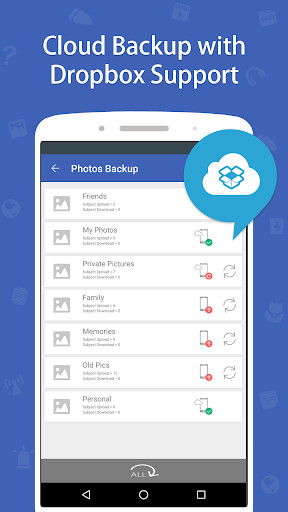
Selected locker content can be prepared for supported cloud services so a protected copy is available beyond the phone.
Attempt logging can help you notice repeated sign-in failures when the necessary Android permissions are active.
The built-in browser is intended to leave fewer local traces by clearing session data such as browsing history and cookies.
Compatible Folder Lock apps can open synchronized encrypted content under the same account, subject to plan and platform limits.
Secure Folder remains the stronger option when your main goal is a separate Samsung app environment. Folder Lock Android becomes more useful when one workspace for media, documents, audio, notes, wallet records, selected app locks, and cloud-connected locker content is more important than Samsung-only isolation.
The trade-off is clear: a third-party vault depends on its own account, permissions, update behavior, and recovery process. It should not replace the phone screen lock, Knox Vault, enterprise controls, banking-app protections, or an independent backup.
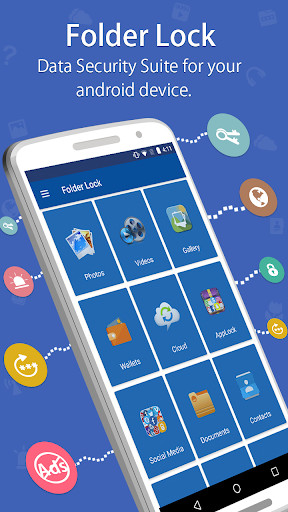
Use this workflow only for data and accounts you own. Begin with disposable test files so you can learn the import, export, synchronization, and recovery behavior without risking the only copy of something important.
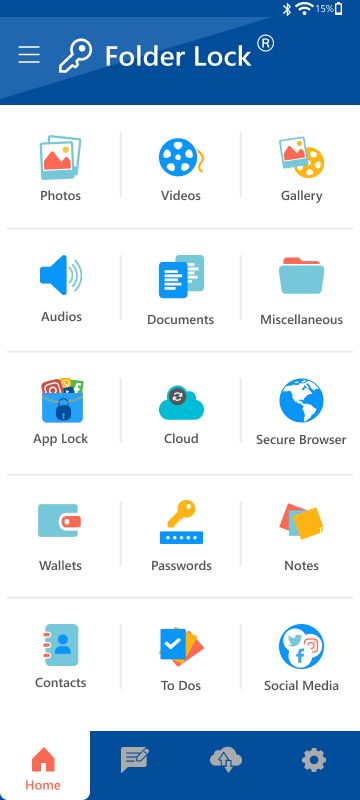
Open the developer’s verified page or the trusted store listing it points to. Do not use repackaged APK files or unofficial “unlocked” builds.
Use an email address you control, complete the verification step, and choose a password that is different from your Samsung account, phone PIN, and banking credentials.
File storage, notifications, camera access, and app locking can require different Android permissions. Approve only what is needed for the functions you actually switch on.
Add a few non-sensitive photos, documents, or audio files. Confirm where the originals remain, how protected copies are removed, and how content is exported back out.
Select only the apps that need another prompt. Then review notification previews, recent-app thumbnails, split-screen behavior, and battery restrictions that could weaken the experience.
If you use synchronization, verify the supported cloud account, confirm that encrypted locker content appears on the second device, and practice restoring a test item.
Reboot the phone and check every enabled lock. Repeat the same checks after major Android or One UI updates, because permissions and background behavior can change.
On supported hardware, Knox Vault isolates selected credentials and cryptographic operations from the main application processor. It does not store every app password, and it does not give users a recovery key for every encrypted container.
Apps inside Secure Folder run in a separate protected profile. They still require permissions inside that profile. Review camera, microphone, contacts, storage, notification, and background access separately from the same app outside the folder.
Separated Apps is an enterprise feature configured by administrators to isolate selected third-party apps from confidential work data. It is not intended as a personal replacement for Secure Folder.
USB debugging enables Android Debug Bridge workflows for development and support. Leave it off when not needed, revoke old computer authorizations, avoid unknown charging stations, and do not accept debugging prompts from computers you do not control.
The Secure Folder system package may appear in diagnostics or app lists. Force-removing it with package tools is not the supported way to manage the feature and can break integration. Use the Secure Folder settings provided by Samsung.
Device keys, secure processing, integrity foundations.
Encryption, permissions, policy, update chain.
Secure Folder, work profile, separated app data.
Authentication, notifications, backups, recovery.
The most important difference is not the login screen. It is what happens behind that screen: isolated profile, encrypted vault, or simple launch-time blocking.
Protection model: A separate Knox-backed profile for compatible apps and data.
Choose it when: you need another app instance, separate account data, and Samsung-native isolation.
Limit: Availability and features vary by Galaxy model, region, and One UI version. It is not a cross-brand vault.
Protection model: An account-based vault with media, file, notes, wallet, browser, cloud, and app-locking functions.
Choose it when: you prefer one organized privacy workspace or want compatible locker access on more than one platform.
Limit: It relies on Android permissions and does not create the same hardware-rooted profile boundary as Secure Folder.
Protection model: A prompt placed in front of selected app launches.
Choose it when: you only want a quick deterrent for a few ordinary apps.
Limit: Notifications, file access, recent-app previews, split-screen behavior, or force-stop conditions may expose more than expected.
At the time this guide was prepared, the product material showed a no-cost tier and a paid version priced at $39.95. It listed a 1 GB locker and synchronization across two devices for the free tier, compared with unrestricted locker capacity and up to five synchronized devices for the paid tier.
Update Samsung Account, Secure Folder, Google Play system components, and One UI. Restart, then open the feature intentionally and complete or decline the current setup. If you do not use Secure Folder, remove it through its official settings after moving out needed data. Avoid clearing protected-container data before checking backups.
Search Settings for Secure Folder, check the quick panel, and confirm it was not hidden. Review model support and enterprise policy. Do not install a similarly named third-party APK to “restore” Samsung’s system feature.
Open the app once, check battery optimization, usage access, overlay or accessibility permissions, and notification restrictions. Then restart and test again. For financial apps, rely on the bank’s own lock even when the extra app lock is working.
Look for a work profile, device-admin app, organization name, or Knox Guard message. Ask the authorized admin which policy blocks the action. Removing random packages can make the restriction harder to resolve.
Unlock the phone with its primary credential after restart, then verify the enrolled fingerprint or face data and Secure Folder lock settings. Re-enroll biometrics only after confirming your fallback password or PIN works.
Remove duplicate files, export non-sensitive items, clear app caches inside the container, and review cloud copies. Keep a backup before deleting apps because app data inside the container can be separate from the main profile.
These are illustrative situations, not customer testimonials.
A retail owner could place the banking app and supplier documents inside Secure Folder while using a separate vault for general private media. The important improvement is knowing which recovery method belongs to each tool.
Illustrative scenario · Personal Galaxy phoneParental controls can manage the child account, while Secure Folder holds adult documents. One app locker should not be expected to solve both supervision and confidentiality.
Illustrative scenario · Shared tabletBefore a company phone changes hands, the IT team should unenroll it and confirm the enrollment record is removed. A factory reset alone may not complete a clean ownership transfer.
Illustrative scenario · Company-managed deviceKeep the bank’s biometric login and transaction alerts enabled even after adding a second app lock. The additional prompt can help, but the bank’s account controls remain the main defense.
Illustrative scenario · Frequent traveler| User or problem | Best starting point | Why | Where Folder Lock fits | Important boundary |
|---|---|---|---|---|
| Galaxy owner who needs separate app accounts | Samsung Secure Folder | Knox-backed profile separation and independent app data | Optional second vault for mixed media and documents | Do not replace Secure Folder merely to gain another PIN screen |
| Android user with photos, documents, audio, notes, and app-lock needs | Folder Lock Android | One privacy workspace covers several content types | Primary third-party companion after the phone lock is configured | Review broad permissions and keep a recovery-ready account |
| User who wants encrypted content on several devices | Folder Lock cloud-connected lockers | Compatible apps can work with synchronized encrypted content | Useful when the same private library must move beyond one Galaxy phone | Cloud-account security and plan device limits still matter |
| Windows user who wants encrypted local, cloud, or portable lockers | Folder Lock 10 | Desktop encryption, locker synchronization, sharing, and portable storage workflows | Pairs with the mobile app for compatible cross-device content | Windows desktop functions are not automatically Android features |
| Windows user who wants to allow viewing but block editing or deletion | Folder Protect | Item-level access rules can protect existing files without moving them into a locker | Not an Android or Knox replacement | It is a Windows access-control tool rather than a mobile secure container |
| Parent supervising a child device | Parental controls and a child account | Supervision, approval, and time rules address the actual need | Only for the adult’s private files | An app locker is not a complete child-safety system |
| Company-managed or Knox Guard-locked phone | Authorized administrator or provider support | Enrollment and ownership records control removal | No legitimate role in bypassing management | Do not use reset or cracking tools |
These products come from NewSoftwares.net, but they should not be treated as interchangeable editions. Match the product to the operating system and the type of protection you need.
| Product | Main platform | Core protection model | Best fit | Not the right choice when |
|---|---|---|---|---|
| Folder Lock Android | Android, with compatible cross-platform locker access | Personal vault, app gating, encrypted cloud-connected content, private notes and records | You want several privacy functions in one mobile workspace | You require Knox-level app-profile isolation or enterprise enforcement |
| Folder Lock 10 | Windows, with companion apps for synchronized content | Encrypted local and cloud lockers, portable lockers, selective sharing, folder locking, secrets, shredding, and privacy cleanup | You need a broader Windows data-security suite and cross-device locker workflow | Your only requirement is a simple Samsung app lock |
| Folder Protect | Windows | Rules that can hide an item, deny opening it, stop edits, or prevent deletion; also supports automatic re-protection and a concealed application mode | You want different access restrictions for existing files, folders, drives, programs, or file groups | You need an encrypted mobile vault or cloud-sync platform |
Choose it for Windows encryption, cloud lockers, portable encrypted containers, controlled sharing, and desktop privacy tools.
Windows suiteChoose it when the goal is to control who may see, open, change, or delete selected Windows items without turning the task into a mobile-vault workflow.
Windows access rulesDesigned for password protection of data carried on removable drives. It is not the same thing as a FIDO2 hardware sign-in key.
Portable storageIntended for endpoint control over removable devices rather than protecting a single Samsung app or Secure Folder.
Device controlFilter by topic or search the exact issue you see on your device.
Samsung Knox is Samsung’s built-in security framework for supported Galaxy devices. It combines hardware-backed trust, operating-system protections, data encryption, integrity checks, and enterprise management controls. Secure Folder is one consumer-facing feature that uses this foundation.
Knox starts at boot by checking trusted components, continues through Android with encryption and policy enforcement, and supports protected services such as Knox Vault and Secure Folder. The exact features depend on the Galaxy model, region, Android version, and whether the phone is personally owned or organization-managed.
Knox provides strong built-in protection when the device is supported, updated, and protected with a strong screen lock. It is not a substitute for backups, careful account security, safe app installation, or prompt security updates.
Secure Folder is a separate protected space on compatible Galaxy devices. Apps and files placed inside use a separate profile and can be guarded by a PIN, password, pattern, or supported biometric method.
You cannot and generally should not remove the underlying Knox security framework from a normal Galaxy phone. You can hide or uninstall Secure Folder if you no longer use it. Enterprise management and Knox Guard restrictions must be removed by the authorized administrator, employer, reseller, lender, or service provider.
First identify what is actually active. For Secure Folder, back up or move out needed files, then use its uninstall option. For a work profile or Knox Manage enrollment, ask the organization to unenroll the device. For Knox Guard, resolve ownership or payment status with the provider that enrolled it.
There is no legitimate universal bypass. Secure Folder recovery works only through supported account recovery when it was enabled, otherwise the protected container may need to be removed and recreated. Managed-device locks require the authorized Knox administrator or provider.
A Knox account ID and password identify an authorized administrator or tenant user. They are not a master password for any Galaxy phone. Device users who see a management lock should contact the organization shown on the device or their verified reseller.
Knox Matrix is a broader Samsung connected-device security concept, not a public command that decrypts a locked Secure Folder or bypasses a device policy. Encrypted data still depends on the relevant device, account, recovery method, and authorized credentials.
A well-designed lock should re-engage after restart, but behavior differs. Secure Folder remains protected and the phone normally requires its primary credential before biometrics work again. Third-party app lockers may need to restart their service or regain permissions after an update, so test them after rebooting.
Biometrics are fast and reduce shoulder-surfing, while a strong password or long PIN is easier to change and remains the fallback after restart. For sensitive apps, use biometrics for convenience with a strong non-obvious backup credential.
Secure Folder isolates a separate copy of apps and their data inside a Knox-backed container. A typical app lock places an authentication screen in front of an existing app. Secure Folder offers stronger separation, while an app locker can be faster for locking ordinary apps that remain in the main profile.
Direct remote browsing of a Secure Folder from another phone or PC is not designed as a normal feature. Move or export the files you own out of Secure Folder first, then transfer them through an approved method. Do not rely on Secure Folder as the only copy of irreplaceable data.
A USB security key is a purpose-built authentication device, commonly supporting standards such as FIDO2 or WebAuthn. It proves possession during sign-in and is different from a normal USB storage drive.
Not as a genuine FIDO2 security key. A storage drive does not contain the secure hardware and authentication functions expected by modern account providers. Some software can store a key file on a drive, but that is a different security model.
Use a compatible physical security key, then register it in the security settings for your Microsoft, work, or school account. Insert or tap the key when prompted, create its PIN if required, and register a second recovery method before relying on it.
Use the reset option connected to your Samsung account only if you enabled that recovery setting. If recovery was not enabled, Samsung’s support guidance indicates you may need to remove Secure Folder and create it again, which can erase data stored only inside it.
Secure Folder apps remain inside their isolated profile, but third-party overlay-based lockers can behave inconsistently with split screen, pop-up windows, recent-app previews, or accessibility changes. Test the exact app and disable previews for highly sensitive content.
The Knox Account ID belongs to an authorized admin or business tenant. It is used to access Samsung Knox services, not as a master unlock for consumer phones. If you are the admin, use the official account recovery process. If you are the device user, contact the listed administrator.
Knox Matrix is not a Secure Folder bypass utility. Treat search results promising automatic decryption with skepticism. Use the recovery process for the specific service holding the data and verify device ownership.
On recent Galaxy devices, review USB preferences, Auto Blocker or related security controls where available, and USB debugging status. Keep the phone locked when connecting to unknown equipment and choose charge-only behavior when data access is unnecessary.
Use the app’s supported hide or disguise option only as a convenience. Hidden apps remain discoverable through system settings, accessibility lists, notifications, app stores, battery screens, and device management. Authentication is the real control.
Not as a normal remote folder. Secure Folder is tied to its device and protected profile. Export owner-controlled files through supported methods before moving devices and keep an independent backup.
Settings paths and labels can move between One UI releases. Search Settings for “Secure Folder,” check the quick panel, and use Samsung’s current support page for your region. Avoid relying on old screenshots as proof that the feature was removed.
Samsung Knox should remain the underlying defense on a supported Galaxy device. Use Secure Folder when the requirement is Samsung-native separation for apps and their data, and use authorized recovery or administrator channels whenever ownership or management controls are involved.
Folder Lock Android is the better companion when the problem is broader: organizing private media, documents, audio, notes, wallet records, selected app gates, and synchronized locker content in one account-based workspace. Its convenience comes with responsibilities, including permission review, account recovery, cloud-account security, and post-update testing.
For Windows, choose Folder Lock 10 when encryption and locker portability are central. Choose Folder Protect when the need is granular access control over existing files, such as blocking edits or deletion while still allowing another kind of access.